Printer Setup Service for Homes & Businesses in the USA & Canada
Setup and configuration of WiFi, USB and network printers for home offices and businesses across the United States and Canada, by an independent North American consultancy with clear, upfront pricing in US dollars.
Each logo opens that company's own public page for avenqube.online. Avenqube is not certified, endorsed or sponsored by Trustpilot, Google, Norton or McAfee.
Find Your Printer
Tell us the brand, model and how you want to connect. We send you a setup guide for your exact printer and call to help if you get stuck.
Fix It Yourself: WiFi, Driver and USB Printer Help
Quick checks that fix a surprising number of printer problems. They are free to try, and if they do not work you know it is time to talk to us. Jump straight to your problem:
Many homes and offices have two network names (for example "Home" and "Home-5G" or a guest network). Print the printer's network report from its menu, or check its screen, and compare the network name with the one your computer or phone is using. If they differ, join the printer to the same one. and we will walk you through it.
Is the printer trying to join a 5 GHz network?
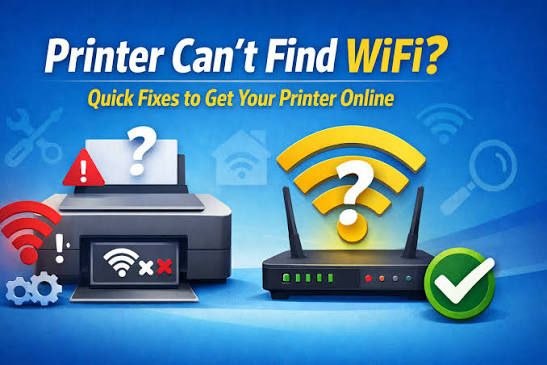
Many home printers can only join a 2.4 GHz WiFi network. If your router shows separate 2.4 GHz and 5 GHz network names, connect the printer to the 2.4 GHz one, then run the printer's wireless setup again from its control panel.
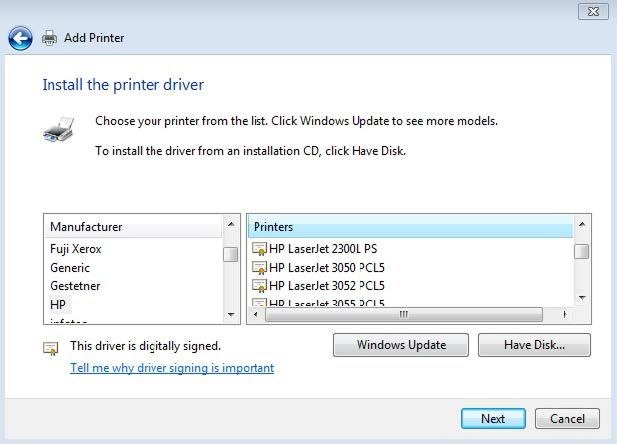
Open Settings › Bluetooth & devices › Printers & scanners, select the printer and choose Remove. Then open Settings › Windows Update, install any waiting updates and restart. Add the printer again; Windows will try to install a fresh driver.
Where do I get the right printer driver?
Only from the manufacturer's official support website. Search for your exact model number and pick the driver for your version of Windows or macOS. We never host driver downloads ourselves. .
Turn the printer on and plug the cable straight into a USB port on the computer, not into a hub or dock. Windows normally adds the printer by itself within a minute; check Settings › Bluetooth & devices › Printers & scanners. On a Mac, open System Settings › Printers & Scanners and choose Add Printer, Scanner or Fax.
The USB printer does not appear
Try a different USB port, then a different cable. If you are using the manufacturer's setup software, follow its order: some printers must only be plugged in when the installer asks for it. Still nothing? .
Restart in the right order: router, then printer, then computer
Turn the router off for 30 seconds and back on. Wait until its lights settle, then switch the printer off and on, then restart the computer. This clears stuck IP addresses, which cause most "printer offline" messages.
Is the printer set as the default, and is the queue clear?
On Windows open Settings › Bluetooth & devices › Printers & scanners, select your printer and open the print queue; cancel anything stuck there. On Mac, open System Settings › Printers & Scanners and check the queue the same way. A single stuck job can block everything behind it.
Still not printing? That is exactly what we are here for.
On Windows 11, every printer and scanner is added and managed from a single place in Settings. These four steps cover the standard process; if your printer does not appear or Windows cannot find a driver, that is exactly where our team can help.
10-second silent overview of adding a printer, playing on a loop. The four steps below show where to click on your own laptop or computer.
01
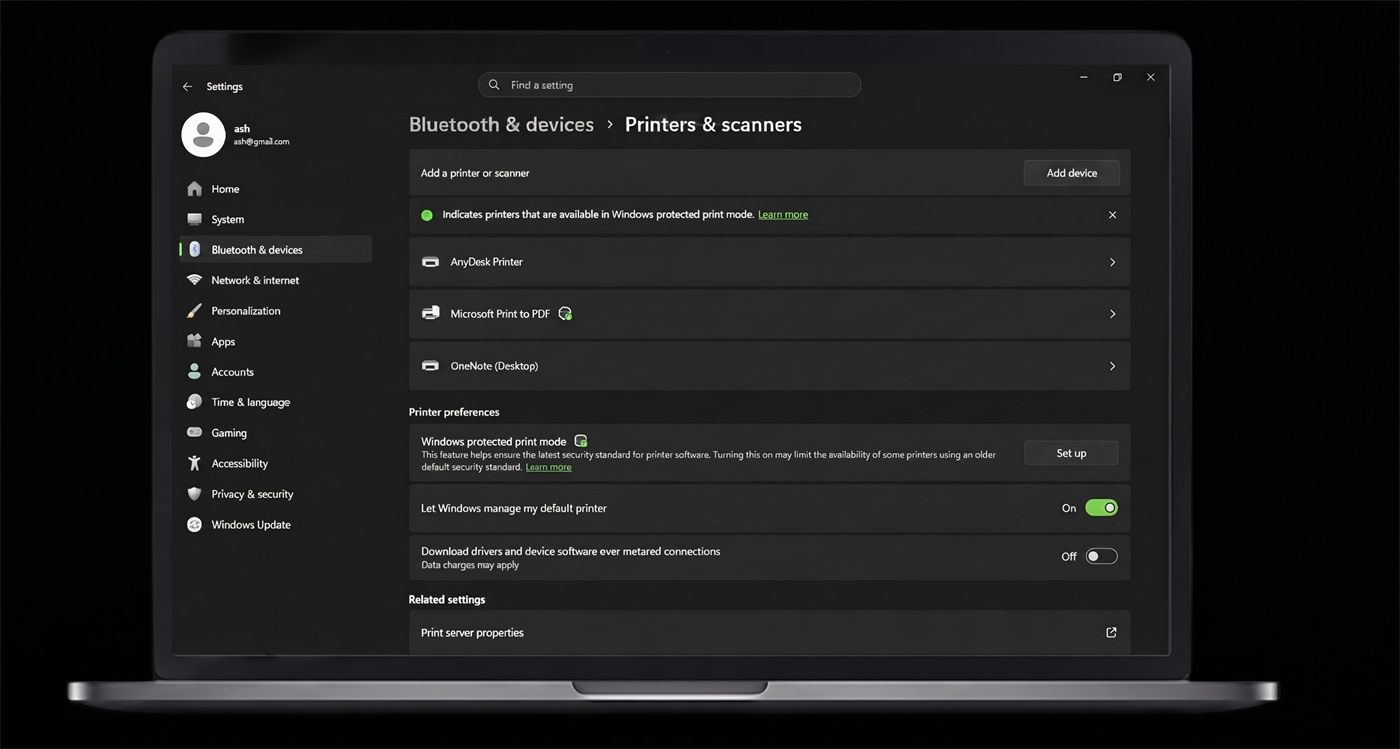
Open Printers & Scanners
Open the Settings application on your computer and navigate to Bluetooth & devices. From there, select Printers & scanners to access printer management options. This section allows you to view installed printers, manage printing preferences, and begin the process of adding a new printer to your system.
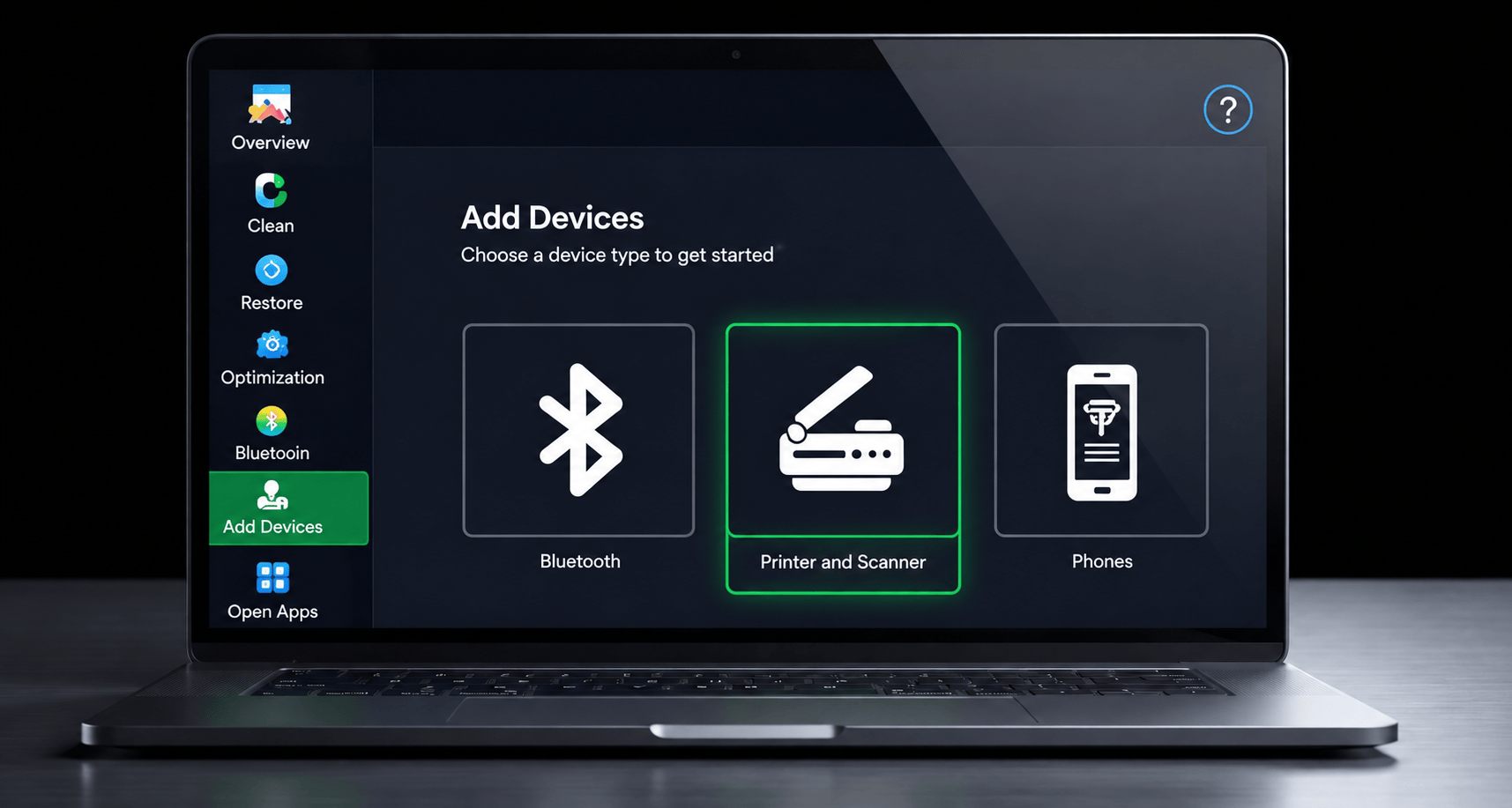
Choose thisIllustration: choose Printer and Scanner as the device type to add
02
Click Add Device
In the Printers & scanners window, locate the Add device button near the top of the page. Click this option to allow Windows to search for nearby printers and compatible devices. Make sure your printer is powered on and ready for detection before continuing with the setup process.
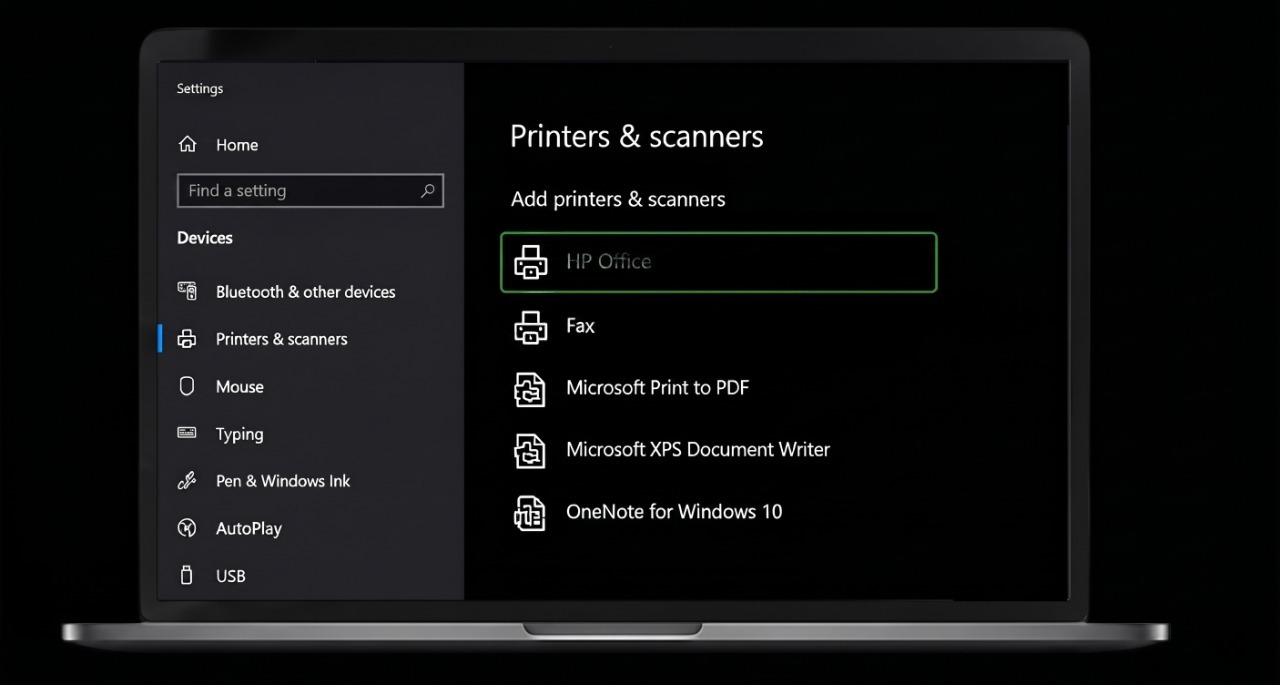
Wait for Windows to complete the device search and display available printers. Review the list carefully and select the printer you want to connect. Confirm that the displayed device name matches your printer model before proceeding to ensure the correct printer is added to your computer.
Select your printerSelect your printer from the list. Check the name matches the model printed on your printer ("HP Office" is only an example).
04
Complete the Setup
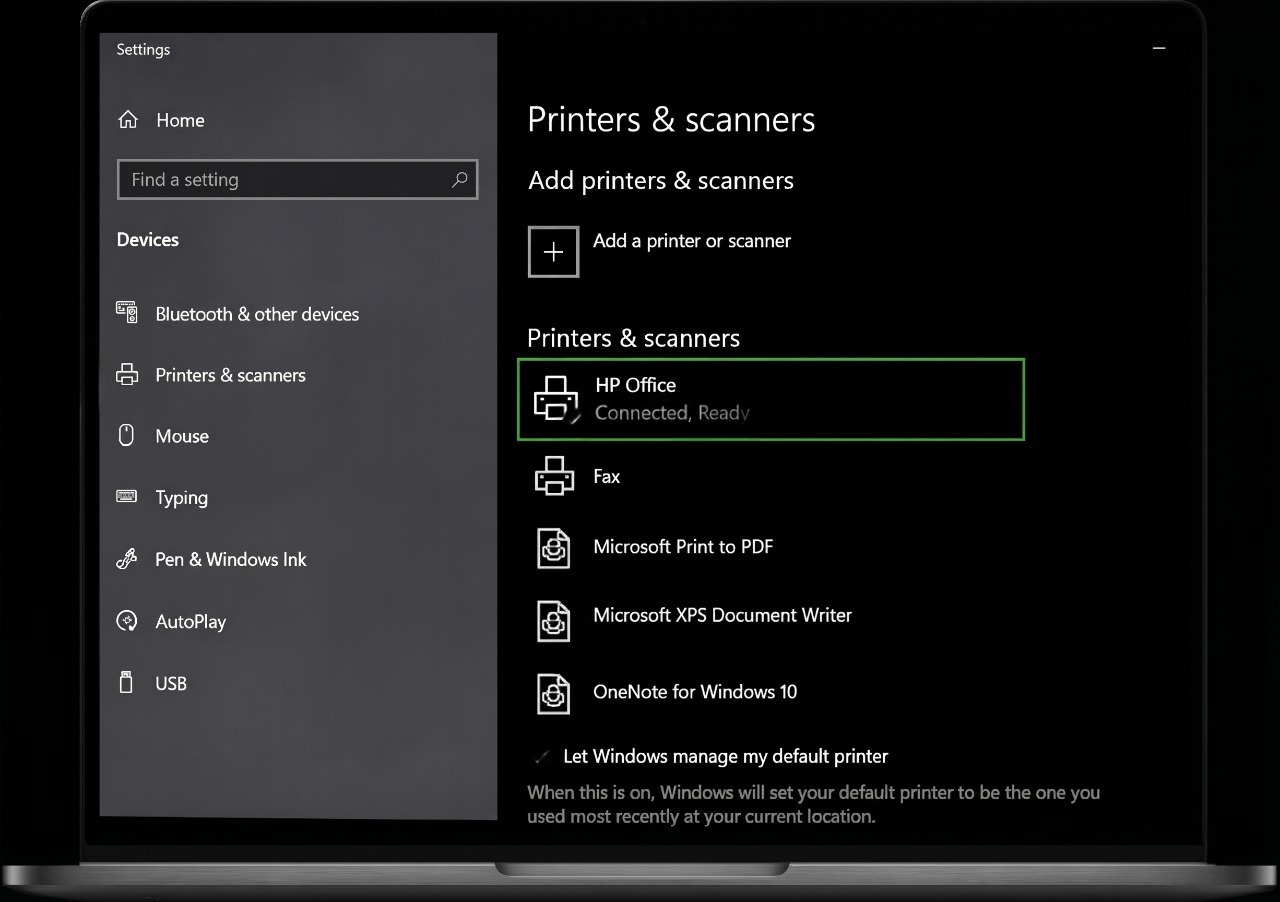
Follow the on-screen instructions to finish the installation process. Windows may automatically install the required drivers and configure the printer settings. Once setup is complete, your printer will appear in the printer list and be ready for printing, scanning, and other supported tasks.
Ready to printThe printer now shows "Connected, Ready". Print a test page to confirm.
Stuck on one of these steps?Printer not found, "driver unavailable", or stuck on "Connecting"? Chat with us and we will get you through it.
Connect your printer to your WiFi network and your computers, phones and tablets.
Joining the printer to your WiFi network (2.4 GHz / 5 GHz guidance)
Adding the printer to Windows and macOS computers
Mobile printing from iOS and Android devices
Assigning a fixed IP address so the printer does not "disappear" from the network
USB and Local Printer Setup
Set up a printer connected directly to one computer, and optionally share it with others on your network.
Installing the correct driver from the manufacturer's official website
Default settings: paper size, duplex (two-sided) printing, colour or black-and-white
Sharing a USB printer with other computers in your office
Scanner and scan-to-computer configuration where the device supports it
Network Printer Setup for Small Offices
Install one or more network printers across a small office so every workstation can print.
Ethernet or WiFi connection and IP address planning
Adding printers to multiple Windows and Mac workstations
Basic access settings and secure printer admin password
Scan-to-email and scan-to-folder setup where supported
Printer Setup Troubleshooting
If a printer you have already set up is offline, prints blank pages, or is not found by your computer, we diagnose the configuration and fix what can be fixed in software.
"Printer offline" and "driver unavailable" errors
Print spooler and queue problems on Windows
Printers that connect but stop working after a router change
Clear explanation if the problem is a hardware fault that needs the manufacturer or a repair shop
Not Sure Which Setup You Need?
Tell us your printer model and how you want to connect it. We will tell you in plain language what the setup involves and what it costs before you commit to anything.
Tick off what you already have. Most setups go smoothly when all five are ready; if anything is missing, our team can help you find it.
Before you start
0 of 5 complete
You're ready. Enter your printer model in the form at the top of the page to get a setup guide for your exact model, or chat with us and we will walk you through it.
Most "my printer stopped working" calls we receive come down to one of two causes: the wrong or missing driver, or a WiFi connection that was never made stable. Here is why each matters, with links to our detailed guides.
Why the Printer Driver Is So Important
The driver is the translator between your computer and your printer. Without the right one, the printer either does not work at all or works badly.
Translation: converts documents into the exact language your printer model understands
Features: unlocks two-sided printing, paper trays, colour settings and scanning
Status: reports ink, toner, paper jams and errors back to your computer
Stability: wrong or outdated drivers cause "offline" errors, spooler crashes and poor print quality
Security: manufacturers patch driver vulnerabilities; old drivers leave a gap
Our setup service handles both: we install the correct manufacturer driver and give wireless printers a fixed address so they stay connected. For more guides, visit our blog.
Need Help Setting Up Your Printer?
Our team is available Mon-Fri, 9 AM - 6 PM EST. Chat with us for live assistance, call us, or send your details and we will get back to you within one business day.
We never: host or distribute printer drivers or software, ask you to install anything other than the manufacturer's official software, request payment by gift card or wire transfer, or claim to be the manufacturer. Drivers are always downloaded from the manufacturer's official website.
Transparent Pricing
Prices are in US dollars (USD) for configuration labor only; Canadian clients are quoted in USD and may pay by card in CAD at their bank's exchange rate. Hardware, ink, toner, cables and manufacturer services are not included. Every price is confirmed in writing before work begins, and there are no hidden fees.
Service
Price
What is included
Single Printer Setup
From $49
One printer connected (WiFi or USB) to up to 2 computers or devices, driver installation, default settings, test page.
Printer Setup Troubleshooting
$79 flat rate
Diagnosis and software-side fix for an existing printer that is offline or not printing. If we cannot fix it and the cause is hardware, you are not charged.
Small Office Setup (1-5 printers)
From $299
Network printers installed on up to 10 workstations, IP planning, admin password, scan-to-email/folder where supported.
Hourly Configuration Help
$95 / hour
For anything outside the packages above, billed in 30-minute increments after the first hour. Estimated hours agreed in advance.
Not sure which option fits?Tell us your printer model and how many devices need to print. We will confirm the price in writing before any work starts.
Offices rarely have printers from a single manufacturer. We set up HP, Canon, Epson, Brother, Xerox, Ricoh, Kyocera and other brands, all through one team.
Fixed, written prices
You know the cost before any work starts. No "diagnostic fee" surprises and no upselling of software you do not need.
Real people, real answers
Reach us by live chat, phone or email during business hours. Every step is explained in plain language, and you decide how to proceed.
Honest about limits
If your problem is a hardware fault or covered by warranty, we say so and point you to the manufacturer rather than charging you for work that will not help.
Managing printers across a whole office?For fleets, cloud print migration or security hardening, our consultancy service goes beyond setup.
Short, practical emails on keeping printers connected, fixing "offline" errors, choosing the right driver and avoiding common setup mistakes. No sales pressure, unsubscribe any time.
Frequently Asked Questions
Are you HP, Canon, Epson or Brother support?
No. Avenqube LLC is an independent company with no affiliation, endorsement or sponsorship from any printer manufacturer. Brand names are used only to describe the equipment we can configure. For warranty claims or hardware repairs, contact the manufacturer directly.
Do I have to pay before you start?
No. You receive a written quote first. Payment is taken after the work is complete and your printer is working, by card or invoice. We never ask for gift cards, cryptocurrency or wire transfers.
What if you cannot fix it?
If the cause is a software or configuration problem within our control and we cannot resolve it, you are not charged. If the cause is a hardware fault, we will explain what we found and you are not charged for troubleshooting.
Which areas do you serve?
We serve customers in all 50 US states and every Canadian province and territory. Our team is based in Winston Salem, North Carolina and is available Mon-Fri, 9 AM - 6 PM Eastern Time on 888-546-0613, which is toll-free from both the USA and Canada.
Get Live Assistance From Our Team
Tell us your printer model and what you need. Chat with us now for immediate help, call us, or request a written quote. No charge to enquire.
Independence Disclosure: Avenqube LLC is an independent third-party consultancy and configuration service. We are not affiliated with, endorsed by, or sponsored by HP, Canon, Epson, Brother, Xerox, Ricoh, Kyocera, Microsoft, Apple or any other manufacturer or software vendor. All trademarks are the property of their respective owners. Manufacturers may offer their own free support, especially for products under warranty.
Independent third-party service. Not affiliated with HP, Canon, Epson, Brother or any printer manufacturer.